HA Sinkhole 


- 👋 Intro
- Installation pre-flight checklist
- ⏩ Quick Start Guide
- Config setup
- Install from inventory
- Test the HA
- 📑 A More Detailed Guide
- Installation PC
- DNS Sinkhole Nodes
- Visualisation
- 👩🍳 How-tos, FAQs and Cookbooks
- How can I...
- License
👋 Intro
ha-sinkhole is a highly available DNS sinkhole service, designed to prevent ads, trackers, malware and other unwanted content appearing in your browser, your mobile apps, your smart TVs and any other Internet connected device on your network.
The project is inspired by the fantastic pi-hole (big shout out to the creators and contributors there) but is a completely different setup using different technologies and with no dependency on pi-hole.
I've used pi-hole for years and couldn't live without that functionality on my network, but it's not easy to make it highly available and I really wanted that. There are several guides available for making pi-hole HA, but they're fragile, bolt-on solutions which are unsupported by the pi-hole project.
ha-sinkhole was created specifically to solve that problem. It addresses that single concern and does not, by design, offer many of the existing pi-hole features (notably DHCP). Metric storage and visualisation is enabled via open source components of the Grafana eco-system and you can run them locally or connect to your Grafana cloud account and manage them there.

You can deploy one or more ha-sinkhole DNS nodes that will share a virtual IP (VIP) address on your network. The nodes will take care of managing the IP address and if a node fails or is taken down during maintenance, one of the others will assume the VIP automatically. You configure all your DNS clients with the VIP as their DNS server, ideally via DHCP, and therefore as long as at least one of your nodes is alive, your DNS and sinkhole service will be operational. Follow the quick start steps to get up and running. One machine will work, two is the minimum for high availability and more ca be added at any time if you want additional resilience.
Whether you're installing on a raspberry pi, a bare metal server, a local VM, on cloud instances or a mixture of them, it should work if your machines meet the pre-flight checklist. As ha-sinkhole uses containers, deploying inside a container is unlikely to succeed. The installer is a flexible, remote install service that enables you to define your layout of nodes (for DNS, logging and visualisation services) including mixing local DNS with cloud services like Grafana for logging and observability.
Installation pre-flight checklist
ha-sinkhole expects that you're running the installer from a "controller" machine (typically your PC) and targeting remote nodes for installation (such as VMs, Pi's or cloud instances). You can however target the same machine you run the installer from.
Both controller and the target machines you want to install components on need to meet some criteria:
Controller machine (where you run the installer):
- An up-to-date
linuxdistro or macOS (Windows compatibility unknown) - Container runtime installed: podman (recommended) or docker
- SSH agent running with your key loaded:
ssh-add ~/.ssh/id_ed25519(verify withssh-add -l) - Environment variable
SSH_AUTH_SOCKis set (verify withenv | grep SSH) - macOS only: Install Ansible natively with
pipx install ansible-core(container mode has limitations on macOS)
Target nodes (where components will be installed):
- Modern Linux OS (also works on RasPi, macOS)
- SSH access configured - you can SSH to each node
- Your user can become root with
sudowithout a password prompt - Configure with:
echo "$USER ALL=(ALL) NOPASSWD: ALL" | sudo tee /etc/sudoers.d/$USER
The installation makes use of passwordless SSH and passwordless sudo on the target nodes in order to perform any install or uninstall task, so you will need to set these up first if you don't already have them working.
⏩ Quick Start Guide
This is the minimal way to get two machines working in an HA configuration and serving DNS requests including sinkhole features.
Config setup
First, on your controller node, create a config file named (by convention but it doesn't matter) inventory.yaml. You can create it anywhere for now. In it, you need to specify your target nodes, the VIP address and a secret. The secret is simply a token used to identify cluster membership for the VIP manager. Default upstream DNS servers and a default blocklist are provided, you can change them later in config.
Below is an example config to get 2 remote nodes installed (accessible at 192.168.0.1 and 192.168.0.2 and sharing a VIP of 192.168.0.53)
   # DNS node group config
   dns_nodes:
     vars:
       ansible_user: pi # <-- the user you can SSH to the hosts as
       vip: 192.168.0.53 # <-- the floating IP shared among the nodes
       vrrp_secret: super_duper_s3cr3t

     # members of the dns_nodes group
     hosts:
       dns1:
         ansible_host: 192.168.0.1
       dns2:
         ansible_host: 192.168.0.2
Install from inventory
Once you have your inventory (config) you can run the installer container via the shell script wrapper. This will ask for the location of your inventory file and then run through the installation on both your nodes in parallel.
Linux:
macOS:
curl -sL https://bit.ly/ha-install -o /tmp/install.sh && \
  chmod +x /tmp/install.sh && \
  /tmp/install.sh -n
You should hopefully see something like..
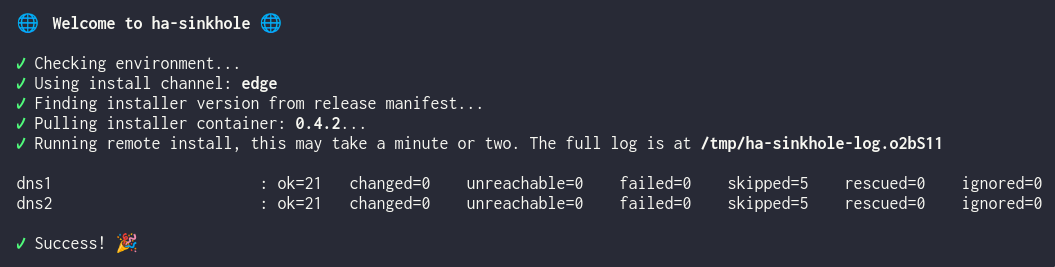
If you see any errors, check the contents of the log for further details. If successful, you should now be able to test your service with something like:
# test blocking
dig +short @192.168.0.53 doubleclick.com

# test upstream forwarding
dig +short @192.168.0.53 google.com
Test the HA
Open a terminal and get a consistent DNS lookup going against your VIP with this, or equivalent for your shell;
# add the @192.168.0.53 if your machine has not had the VIP set as its resolver yet
while true; do dig +short google.com; sleep 1; done
Now let's kill the primary service and see what happens. SSH to your two DNS node machines in new terminals and figure out the machine with the VIP (ip addr or ifconfig will tell you). On that machine, shut down the dns-resolver service;
You should see that the VIP quickly transitions to the other node and that the DNS lookup in your first terminal continues uninterrupted, or with minimal error before resuming.
Bring the service back up;
.. depending on your setup, the VIP will either stay where it is or transition back to this node if it is deemed a more worthy primary node.
If everything looks good, configure your DNS clients with the vip address and make sure this address can't be obtained by anything else on your network (i.e. exclude it from any DHCP range). You can test this on just the current machine by editing /etc/resolv.conf or otherwise amending IP config / DNS settings for your particular OS or environment.
Finally, profit with ad-free browsing and highly available DNS 😊
📑 A More Detailed Guide
Installation PC
The installation machine is not part of the runtime, it does not need a connection to the servers once they are installed and running. However, you should keep the inventory safe because if you ever need to make changes to the setup, you can change the inventory file, re-run the installation service and it will make only the required changes.
DNS Sinkhole Nodes
This diagram shows a more detailed architecture of DNS resolver components.

A DNS sinkhole node is made up from four containers, each performing a specific function. All containers are configured through the installation config file that you created as part of the Quick Start guide above. Or if you haven't yet, you may want to create one from the example inventory file instead.
The installer will install stable versions of containers and components by default. If you want the bleeding edge, add or change the install_channel to edge in your inventory file.
The containers making up a DNS sinkhole node are:
- blocklist-updater is a cron like container that periodically updates the sources for the domains to block. The container does not run unless invoked by its timer component, which will happen daily. Once it has re-generated the blocklist file based on your
blocklist_urlsin config, the container will exit. The DNS resolver will reload the blocklist file when it sees that it has changed. The blocklist timer and container run rootless if managed bypodman - dns-resolver is the DNS resolver and is built on top of coredns, a very fast, reliable and highly configurable resolver. The main job of
dns-resolveris to consume the blocklist file and return the sinkhole address0.0.0.0for any domain in its list. If the domain being queried is not in the list, it will pass the query to one of potentially several upstream resolvers instead and return any answer they give. The documentation page for this container covers all of the available configuration options in detail. -
stats-collector built on grafana alloy scrapes the prometheus metrics from the dns-resolver and ships them to the storage and visualisation endpoint. This can be a local setup or a cloud based instance.
-
vip-manager based on keepalived is the component that manages the VIP and elections of master nodes among the cluster members. Because of the system and network permissions it requires, this container runs with root privileges. The documentation page for this container covers all of the available configuration options in detail.
dns-resolver and stats-collector share a pod, or network context, that allows them to tightly couple and communicate with each other on the loopback address. The pod exposes the ports that other services use, principally the healthcheck port and the DNS unprivileged port, both of which are assumed by dns-resolver.
Visualisation
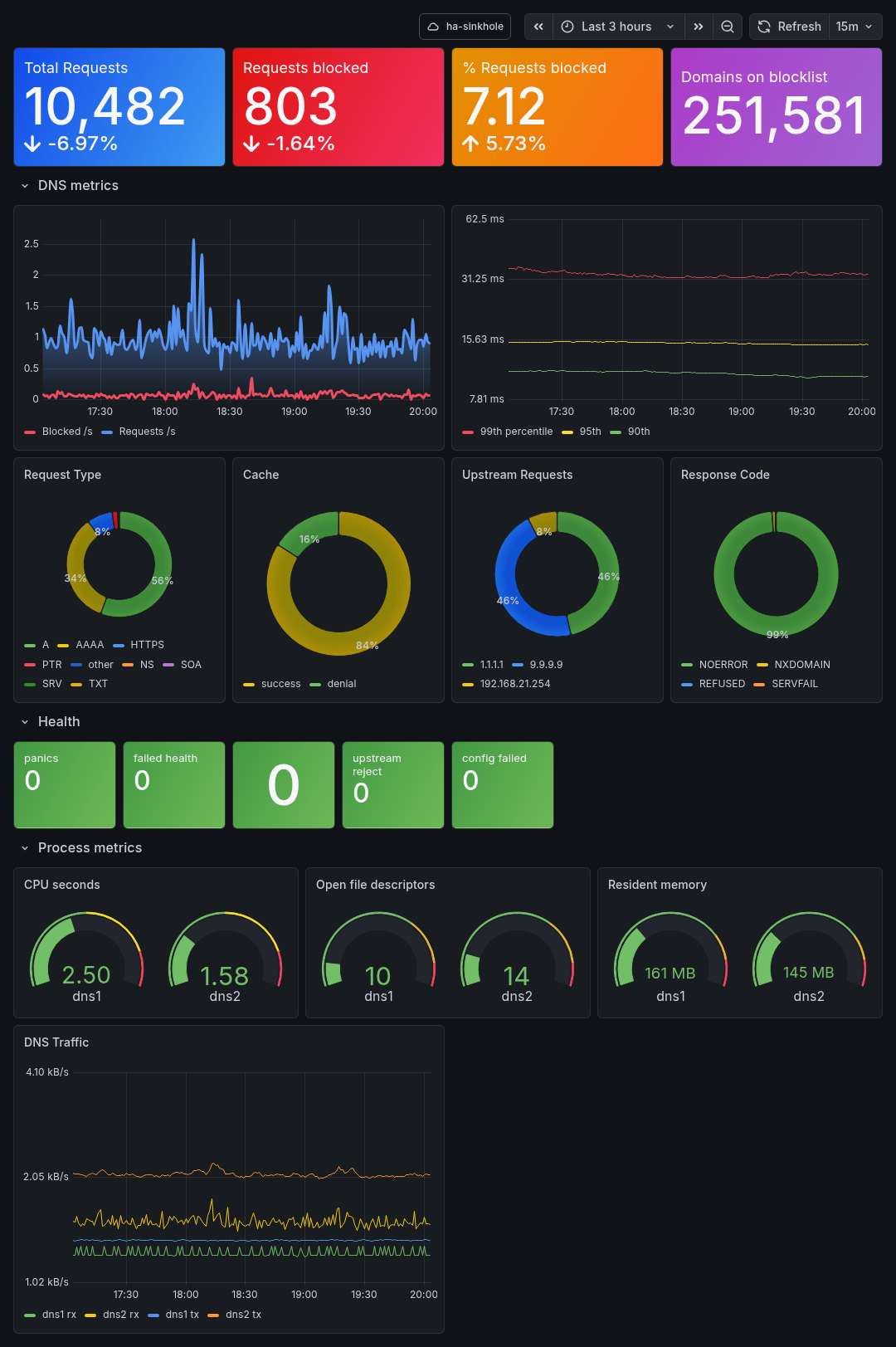
Currently an early preview of metrics and visualisation is available if you have a cloud instance of grafana/prometheus. A dashboard can be imported into your grafana instance from here.
👩🍳 How-tos, FAQs and Cookbooks
Below are a few handy hints for achieving common objectives with your DNS and sinkhole setup. They're in no particular order.
How can I...
Temporarily exclude one of my blocklists?
- Open your
inventory.yamlfile - Comment out the one you want to exclude
- Re-run the installer
Upgrade to newer components?
- Re-run the installer with your existing inventory.
This will update any required containers and config based on the release manifest for your chosen install channel.
Uninstall all the ha-sinkhole components?
- Run the installer with your inventory file and the command
uninstall
Send metrics to my grafana cloud account?
- Add your prometheus host, account number and API token to the inventory file
- Run the installer
- See the details in the stats-collector README
License
Licensed under the Apache License, Version 2.0. See: https://www.apache.org/licenses/LICENSE-2.0
Copyright 2026 Radius Red Ltd.